
Connect to the Wired Network in Residence Halls
Step-by-step instructions for connecting to the wired network in residence halls.
This article applies to: Wired Network
Step 1: Plug into the Data Jack
- Plug the supplied cable into the back of your computer. Use the connector that fits the end of the cable.
- Find the data jacks in your room. Your jacks probably have one of the following configurations:
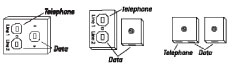
Note: The second box may be some distance from the first. - Plug the Ethernet cable into the first available data jack.
Locating the Live Jack
When you move into your room, a live jack will be present, but not all of the available jacks will be live. On some computers, there is at least one small light near the Ethernet connector. If this light is on when the cable is plugged in, you probably have a live jack. Computer configurations vary, so if you do not have a light on your Ethernet card, consult your computer or Ethernet card documentation.
In suites that include common areas, the live jacks are in the bedrooms. Jacks located in the common areas are not live by default.
Jacks can be activated for an additional fee. For more information, see Activate Student Wired Network Service.
Step 2: Connect and Register
Windows and macOS will normally configure TCP/IP automatically.
- Start your computer and open an Internet browser (such as Mozilla Firefox or Microsoft Explorer).
- Go to the Cornell Network registration and Security System page. (This page may open automatically.)
- Complete the online registration.
Connection Problems: If you are unable to get to the registration page or cannot get past the registration page, wait five minutes and then restart your computer. Try registering or accessing the network again. If you are still unable to get online or are experiencing other connection issues, call the IT Service Desk at (607) 255-5500 for help.
About Ethernet Cables
You must use a provided cable for a wired network connection.
Students may request an Ethernet network cable by reaching out to the Cornell Housing and Dining Contracts Office.
- Email: housing@cornell.edu
- Phone: 607-255-5368
- Walk-in: 206 Robert Purcell Community Center (RPCC) Monday–Friday, 8:00am–5:00pm
Comments?
To share feedback about this page or request support, log in with your NetID